If you're reading this you're probably like me and develop on windows, it has served me right but I recently found out that you can't avoid Linux as a developer, configuring a dual boot solution was the go-to solution for this for a while. but that comes with some limitations, for one you can only use one at a time and that was not an option when I was developing a server that was almost complete on windows until I had to add caching and Redis is a Linux only solution. My options were to clone the project into a Linux environment or find a way to run limited Linux which would let me run the server in windows and Redis on Linux then I discovered the windows subsystem for linux (WSL) which allows you to run Linux in windows and have access to the Windows file system and a parallel Linux file system , that was perfect for my needs
The first step is installing wsl Run the simple command:
`wsl --install ` windows will do a bunch of stuff under the hood includind downloading a linux distro (latest ubuntu by default) see for more info and custom install instructions
Configuring windows terminal with WSL2 and ubuntu
you'll need a terminal to use linux bt sadly window's default offerings are less than desirable, that's why they made windows terminal download from windows store
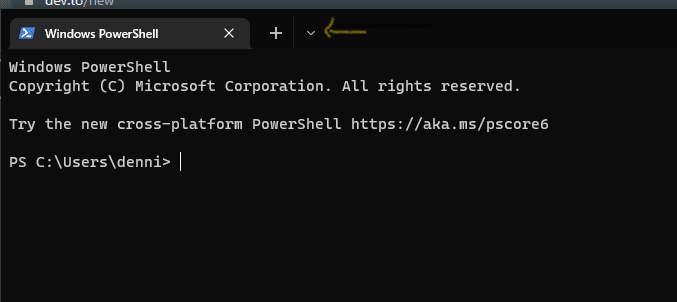
Navigate to your terminal, click on the dropdown button next to the plus sign on the tab area to open the side panel
windows terminal dropdown button
if ubuntu peofile doesn't already exist go to settings>scroll down on list of profiles , at the bottom click on open json file
in the profiles
typescript
1{
2"commandline":"wsl.exe ~ -d Ubuntu",
3"guid":"{2c4de342-38b7-51cf-b940-2309a097f518}",
4"hidden":false,
5"name":"Ubuntu",
6"source":"Windows.Terminal.Wsl",
7"startingDirectory":"~"
8},
save in your editor and exit
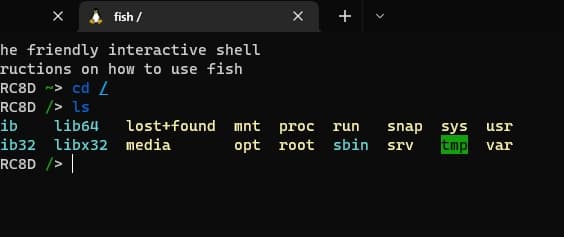
you can optionally add if you have fish shell, for it to load fish by default on startup ` "commandline": "wsl.exe ~ -d Ubuntu fish", ` you might notice the ls colors being a little unreadable in which case you might want to do the following:
open ~/.bashrc with your favorite code editor
i'll use vscode
typescript
1code ~/.bashrc
>Note :the first line should be all one line , it won't work if put in multiple lines